Give the job a home.
Create a project by name and its desktop folder is created automatically. Drop PDF tickets into the app’s queue. The app reads the key details for your review and flags items that need attention.
From a contractor’s PDF to a signed ticket and a clear project total. One focused Windows app for field supervisors and project managers.
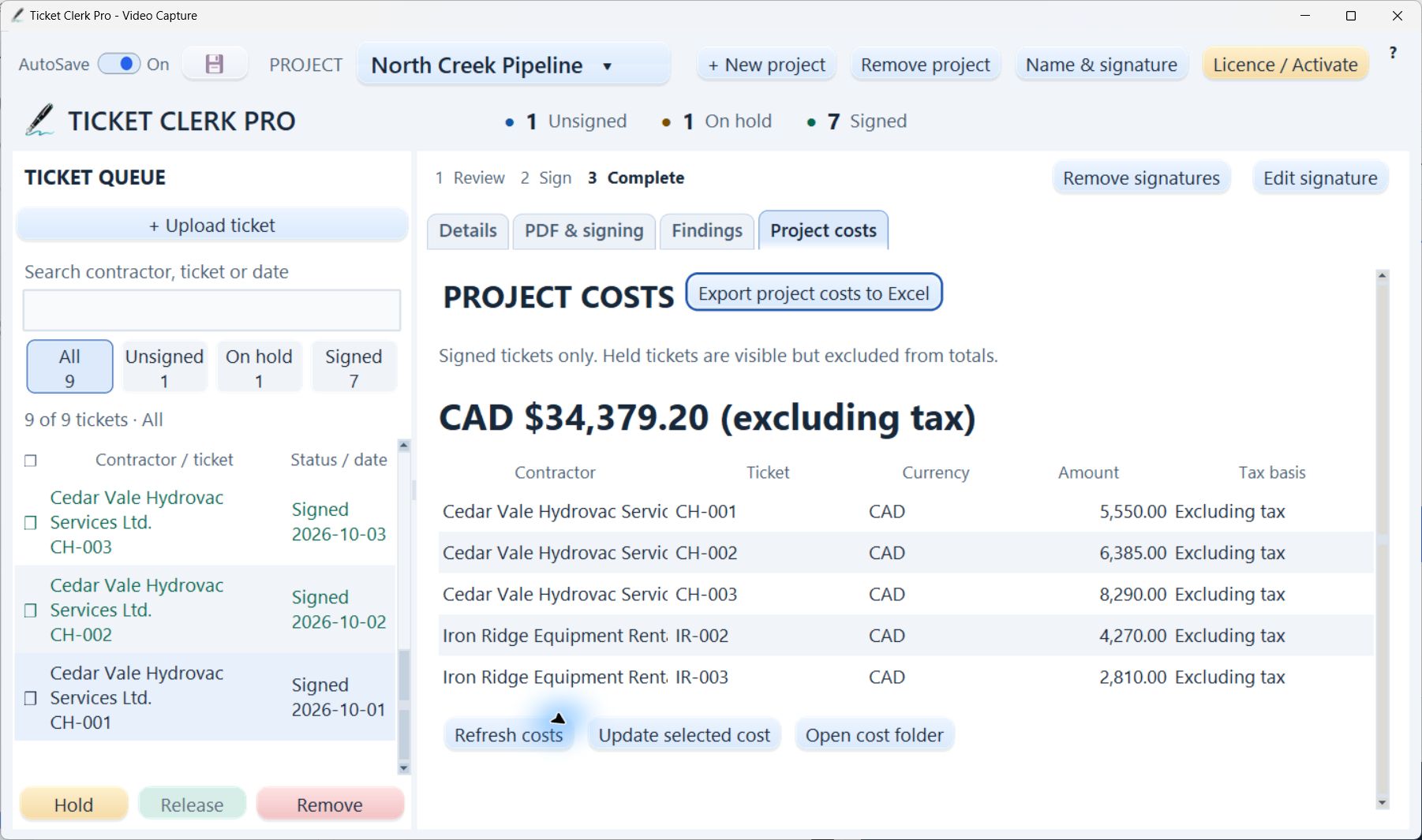
REVIEW. SIGN. TRACK.
No hunting through email chains or building a new spreadsheet for every job. Keep the ticket and its details together.
Create a project by name and its desktop folder is created automatically. Drop PDF tickets into the app’s queue. The app reads the key details for your review and flags items that need attention.
Check the original PDF, correct any details, then place your printed name, signature and date. Add them wherever needed, choose Complete signing, review every page of the final PDF, then Approve & file.
Signed PDFs are filed under each contractor in your desktop project folder. Export ticket numbers, dates, costs, contractor subtotals and the project total to one Excel worksheet.
YOUR PROJECT. RIGHT ON YOUR DESKTOP.
Create a project and Ticket Clerk Pro creates its desktop folder. Choose Complete signing, review every page of the final PDF, then select Approve & file. Your signed PDF is filed under the correct contractor. After editing a signed ticket, choose Complete signing, review the final PDF again, then select Approve & file to update the filed copy.
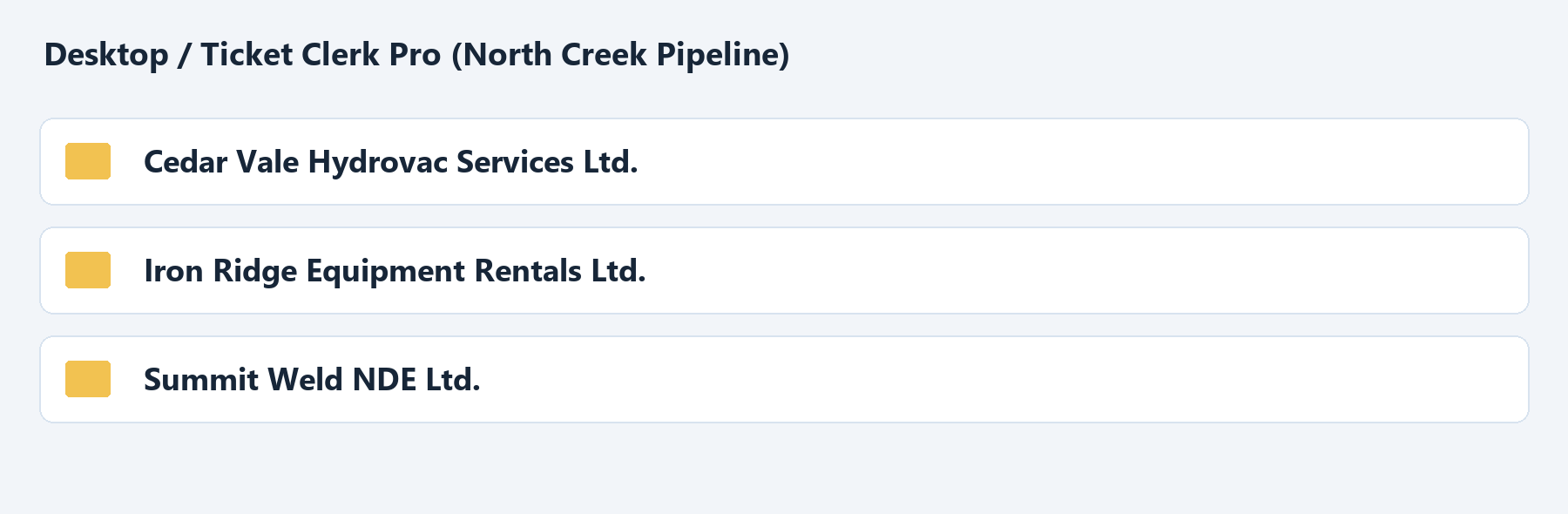
Open the project folder from your desktop to find your signed PDFs. Share the files—or a copy of the folder—with your office or project team using your usual sharing method.
Unsigned uploads remain in the app’s project Inbox. The desktop folder holds signed PDFs. A shared copy is a snapshot; send an updated copy after later edits.
▷ See the desktop folder in the walkthroughFOLLOW-UP WITHOUT THE GUESSWORK
A charge needs checking. Put the ticket on hold and its cost leaves the project total. Release a signed ticket when it’s resolved, and its cost returns.
Organized by project. Grouped by contractor.
Ready to find when you need them.
SEE THE WHOLE WORKFLOW
Preview the refreshed interface: ticket review, signing, the desktop project folder, Excel export, creating a one-page PDF through Excel, and subscription activation. All contractors, charges and signatures shown are fictional. Captions are optional—turn them on in the video controls.
SIMPLE, FLEXIBLE PRICING
Choose Monthly or Annual to see purchase options. Buy on any device and activate on Windows afterward.
Automatically renews monthly until cancelled.
Automatically renews annually until cancelled. Save about 22% compared with monthly billing.
Prices in US dollars, plus applicable tax. Available in Canada and the United States. Download the 7-day free trial.
GET TICKET CLERK PRO
Download Ticket Clerk Pro for Windows. Start with a clean workspace, create your project and upload your own PDF tickets.
Download Ticket Clerk Pro for Windows ↓Windows 10/11, 64-bit · 7-day free trial · No card required for the app
Version 1.3.8 · Digitally signed Windows installer. What’s new in 1.3.8.
Follow your organization’s software approval process.
A FEW PRACTICAL DETAILS
Ticket reading, signing, filing and cost reporting run locally. Your licence works offline until its displayed expiry. Activate website purchases with your code. The app retrieves paid renewals online without a replacement code.
No. You review the document, place the marks and choose Complete signing. A signature image is a visible PDF mark, not a certificate-based digital signature.
After the trial, purchase Monthly or Annual and enter your activation code. Your PDFs and project records are retained. The app does not collect payment information or enroll you in automatic billing.
Visit our Support Center for setup guidance and contact details. Our support address is support@ticketclerkpro.com. Include your app version and a description of the issue.
Yes. PDF layouts and scan quality vary. Always compare extracted details with the source ticket before signing or reporting costs.
HELP WHEN YOU NEED IT
Setup guidance, ticket-review tips, and answers about your subscription.